Showing posts with label Set Up Outlook Express. Show all posts

Monday, October 5, 2009

Setup Yahoo mail in Outlook Express

Setup Yahoo mail in Outlook Express
  1. From the Tools menu, choose "Accounts."
  2. Select the "Mail" tab.
  3. Click the "Add" button.
  4. From the Add menu, click "Mail."
  5. In the text box labeled Display Name, type your name and click "Next."
  6. In the Email Address box, type your Yahoo! Mail address (be sure to include "@yahoo.com") and click "Next."
  7. Under "My incoming mail server is a…" select "POP3."
  8. Type "plus.pop.mail.yahoo.com" in the Incoming Mail (POP3, IMAP, or HTTP) Server box.
  9. Type "plus.smtp.mail.yahoo.com" in the Outgoing Mail (SMTP) Server box.
  10. Click "Next."
  11. In the Account Name box, type your Yahoo! Mail ID (your email address without the "@yahoo.com").
  12. In the Password box, type your Yahoo! Mail password.
  13. If you want Outlook Express to remember your password, check the "Remember password" box.
  14. Do not check the boxes labeled "Log on using Secure…"
  15. Click "Next."
  16. Click "Finish."
  17. Select 'plus.pop.mail.yahoo.com' under 'Account,' and click 'Properties.'
  18. Click the “Servers” tab.
  19. Under “Outgoing Mail Server” check the box next to “My server requires authentication”
  20. Click the 'Advanced' tab.
  21. Under “Outgoing mail Server (SMTP)”, check the box next to “This server requires a secure connection (SSL). Enter port number “465” in the “Outgoing mail (SMTP)” field.
  22. Under “Incoming mail (POP3)”, check the box next to “This server requires a secure connection (SSL)". The port number in the “Incoming mail (POP3)" field should automatically change from 110 to 995. If it doesn’t, make sure the port number is set to 995.

Sunday, October 4, 2009

Setting up Outlook Express to work with Gmail

Configure your Gmail account on Outlook Express


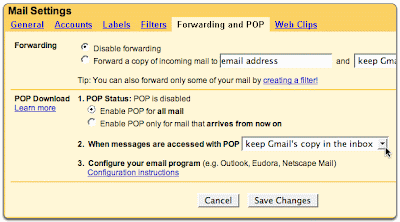
To enable POP in Gmail:

  1. Sign in to Gmail.
  2. Click Settings at the top of any Gmail page.
  3. Click Forwarding and POP tab.


From a drop down menu, you can select what you want to do with the message once it is downloaded to Outlook Express on your system. I suggest that you let it lie on your Gmail account or archive it since there is so much of space available on Gmail.

4. Click on the Save Changes button when you are done.

Configuring the Outlook Express Email client

  1. Open Outlook or Outlook Express.
  2. Click the Tools menu, and select Accounts...

3. Click Add, and then click Mail...

4. Enter your name in the Display name: field, and click Next.
5. Enter your full Gmail email address (username@gmail.com) in the Email address: field, and click Next. Google Apps users, enter your full address in the format 'username@your_domain.com.'
6. Enter pop.gmail.com in the Incoming mail (POP3, IMAP or HTTP) server: field. Enter smtp.gmail.com in the Outgoing mail (SMTP) server: field. Google Apps users, enter the server names provided; don't add your domain name in this step.

7. Click Next.
8. Enter your full email address (including '@gmail.com' or '@your_domain.com') in the Account name: field. Enter your email password in the Password: field, and click Next.

9. Click Finish.
10. Highlight pop.gmail.com under Account, and click Properties.

11. Click the Advanced tab.
12. Fill in the following information:

* Check the box next to This server requires a secure connection (SSL) under
Outgoing Mail (SMTP).
* Enter 465 in the Outgoing mail (SMTP): field.
* Under Outgoing Mail (SMTP), check the box next to This server requires a secure connection (SSL).
* Under Incoming mail (POP3), check the box next to This server requires a secure connection (SSL). The port will change to 995.

The order of Outgoing and Incoming mail server fields varies by version. Make sure you enter the correct information in each field.

13. Return to the Servers tab, and check the box next to My server requires authentication.

14. Click OK.

It is now time for you to test the Gmail account configured in Outlook Express. If you had selected the option of enabling POP at Gmail for only new messages, send a test message to your Gmail account from another email address.

Id Scanner